
📖 Importing Vocabulary into the App
Importing your own vocabulary lists into VokabelSafe is easy and fast. Follow this short guide to transfer your files to your smartphone or tablet.
📁 Preparation: Transfer File
Before you start, the JSON file must be saved on your mobile device (smartphone or tablet). You can easily transfer the file:
- Send it to yourself via email and save the attachment.
- Use a cloud service like Google Drive, OneDrive or iCloud.
- Send it to yourself via messenger (e.g. WhatsApp, Signal or Telegram).
The only important thing is that the file is in your device's memory (e.g. in the "Downloads" folder).
1. Open the "Add Vocabulary" Area
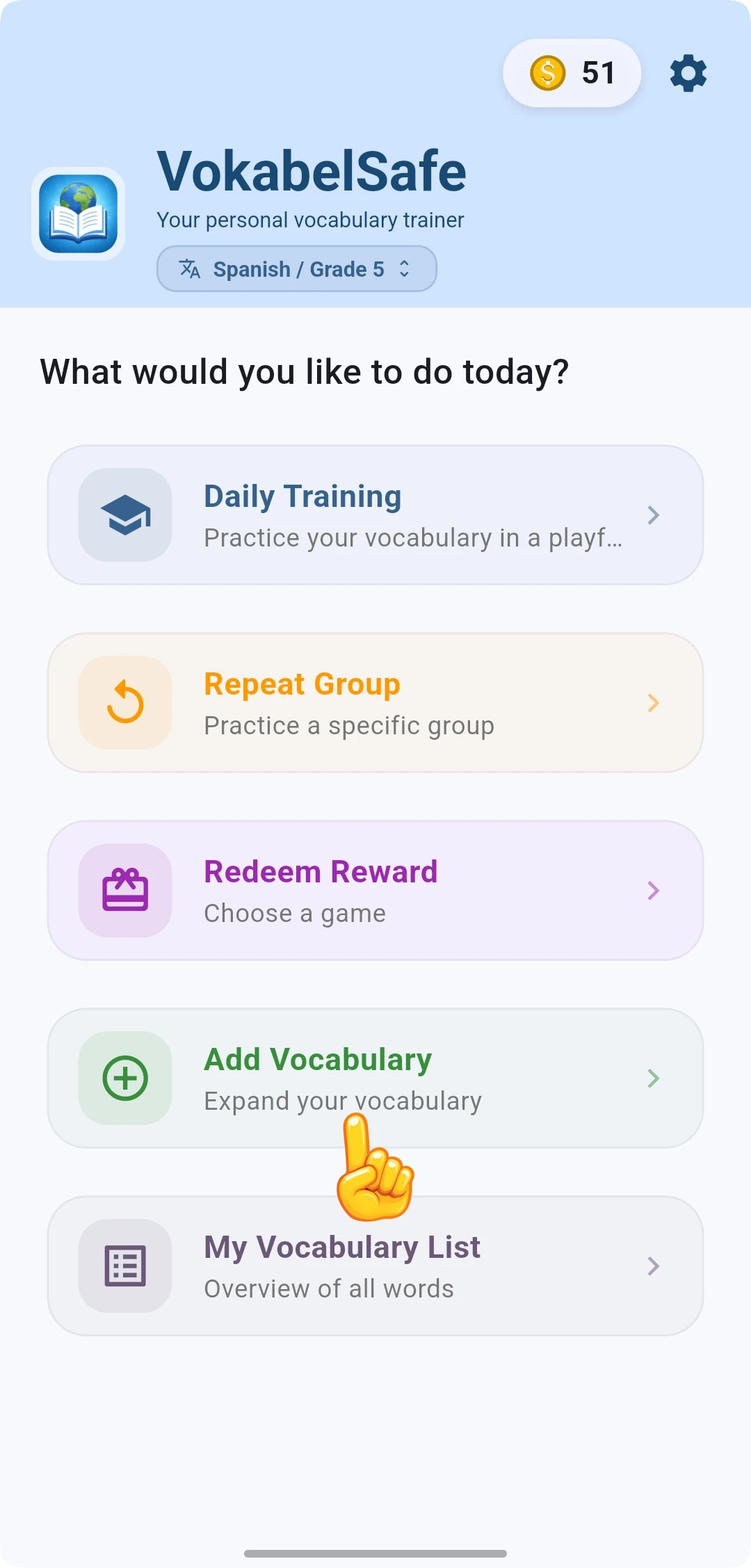
Start the VokabelSafe app on your device. On the main page, tap the "Add Vocabulary" button.
2. Start Import Function
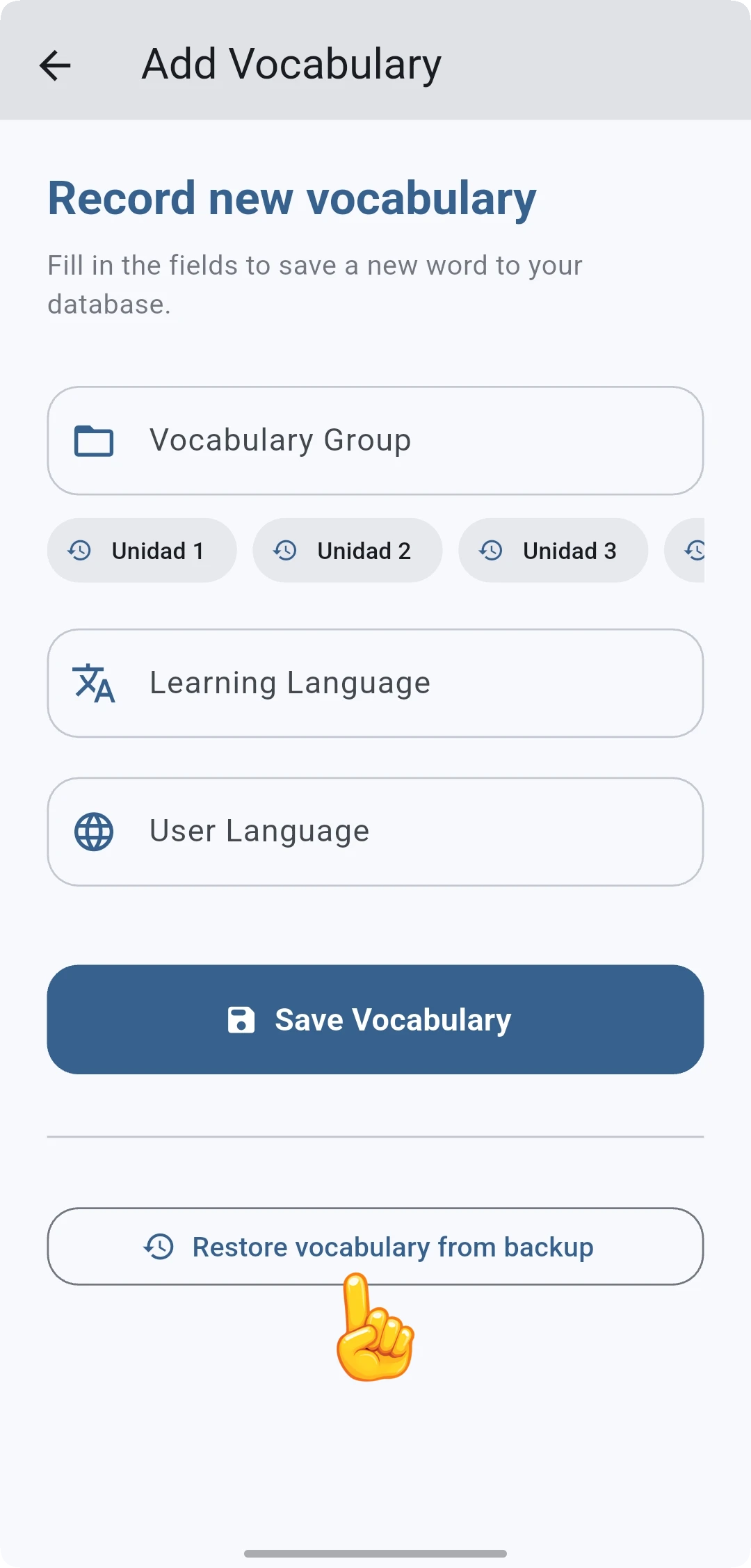
In the following view, you will find the "Restore Vocabulary from Backup" button. Tap this button to select your JSON file and start the import.
💡 Tip: Observe File Format
Ensure that your vocabulary list is in JSON format. If you still have an Excel spreadsheet or CSV file, use our converter or have the list created directly by an AI.
3. Select File and Finish
After tapping the button, your device's file selector will open. Select your prepared JSON file there (it is usually in the "Downloads" folder). The vocabulary will now be automatically imported and will be available in your list immediately. Done!